.png)
Understanding the Uploads Capability
Jump to:
What is Uploads | Uploads in the Postings Dashboard | Uploads for Minimum Wage | Uploads for Paid Leave
What is Uploads?
We heard you. Editing location data one record at a time is tedious, and when you're managing dozens, hundreds, or thousands of locations, it's not realistic to keep things current that way.
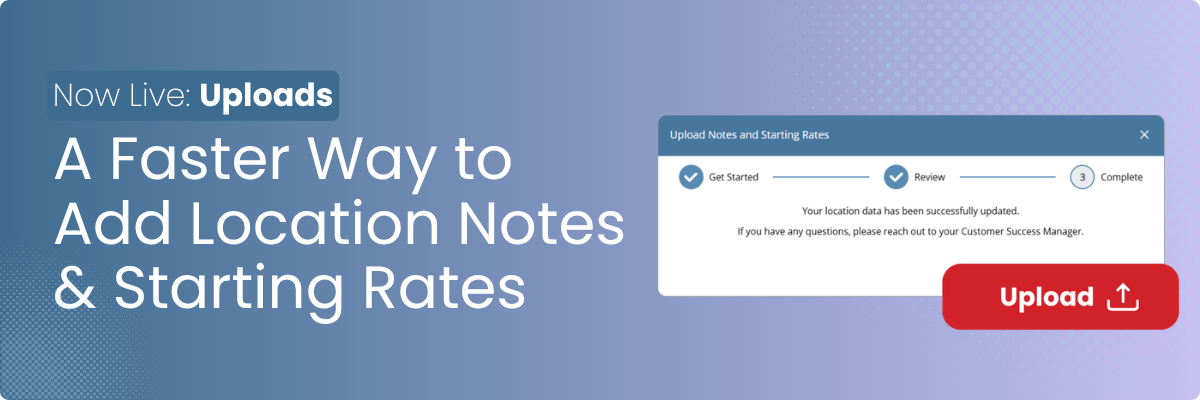
Uploads is the answer to that. Instead of opening each location individually, you download a pre-populated Location Data File, make your updates, and upload your changes back to the GovDocs dashboard in one process. The system checks for errors before anything saves, so you can catch mistakes before they become problems.
The result: bulk edits that take minutes, not hours, with less risk of inconsistent or incomplete data across your footprint.
Uploads is now live in the Postings Dashboard, Minimum Wage, and Paid Leave with no additional setup required.
Uploads in the Postings Dashboard
Uploads gives your team a faster way to keep labor law poster compliance accurate and updated across multiple locations.
What You Can Update
- Location Notes: Add or update internal notes for any location, such as posting instructions or compliance reminders.
Why it Matters
Location Notes in the Postings Dashboard are how your team communicates important context about each location. When you're managing a large number of locations, populating and refreshing those notes one at a time isn't practical. Uploads lets you prepare your Location Notes in a spreadsheet or from another system and apply them across all relevant locations in a single submission.
How to Use
- Download your Location Data File from your Location Tab
- Update the Location Notes column for any locations that need changes
- Upload your file, review the error summary, and confirm
- Changes are applied immediately across all updated locations
Uploads for Minimum Wage
Minimum wage compliance requires keeping Starting Rates accurate across every location in your program. When rates change at the state or local level, that can mean updating dozens or hundreds of records at once. Uploads makes that manageable.
What You Can Update
- Starting Rate: the base hourly rate for a location, used to determine applicable minimum wage requirements
- Tipped Rate: the hourly rate for tipped employees, where applicable
- Location Notes: internal notes for any location
Why it Matters
Minimum wage rates change frequently, and staying current across a large location footprint means your team needs a reliable, repeatable way to push rate updates without manual entry. Uploads lets you pull your updated rates from an internal compensation spreadsheet or HRIS export, map them to your Location Data File, and apply them in a single upload. Less manual work, fewer opportunities for error.
How to Use
- Download your Data Location File from your Locations tab
- Update Starting Rate, Tipped Rate (where applicable), and Location Notes for any locations that need changes
- Upload your file, review the error summary, and confirm
- Changes are applied immediately across all updated locations
How to use Uploads: An Interactive Demo
Uploads for Paid Leave
Paid leave compliance varies significantly by jurisdiction, and organizations managing locations across multiple states or localities need accurate, up-to-date records to stay on top of it. Uploads gives your team a straightforward way to keep location data current.
What You Can Update
- Location Notes: add or update internal notes for any location, such as policy-specific reminders, HR contacts, or compliance context
Why it Matters
Paid leave policies differ by location, and your team often needs to capture jurisdiction-specific context directly on a location record. When you're managing a large number of sites, doing that one at a time isn't efficient. Uploads lets you prepare your notes in bulk and apply them across all relevant locations at once.
How to Use
- Download your Location Detail File from your Locations tab
- Update the Location Notes column for any locations that need changes
- Upload your file, review the validation summary, and confirm
- Changes are applied immediately across all updated locations